Creating invoices
Create invoices from approved time and billable expenses, and BookSync creates them in QuickBooks Online. BookSync's part ends once the invoice is in QuickBooks. Sending it to the client, sales tax and payments are all handled in QuickBooks.
- Start a draft: pick the client and period, and unbilled time and expenses are listed for you
- Adjust it: leave out what you won't bill, add lines or a discount
- Create it in QuickBooks: click Create in QuickBooks
- Send it to the client from QuickBooks
Only admins (Owner and Admin) can create invoices. Once time or an expense is on an invoice, the fields that affect the amount (date, hours, project and so on) can't be changed.
Before you start
Set these up once.
| Setting | Where | What to do |
|---|---|---|
| Turn on invoices | Settings → Company Settings → Invoices | Check Make invoices in BookSync. Invoices then appears in the left menu |
| Connect QuickBooks | Settings → QuickBooks Connection | Connect with Connect to QuickBooks |
| Client mapping | Settings → Customer Mapping | Link BookSync clients to QuickBooks customers |
| Invoice items | Invoices → Invoice settings | Choose QuickBooks item for time and QuickBooks item for expenses, then Save settings |
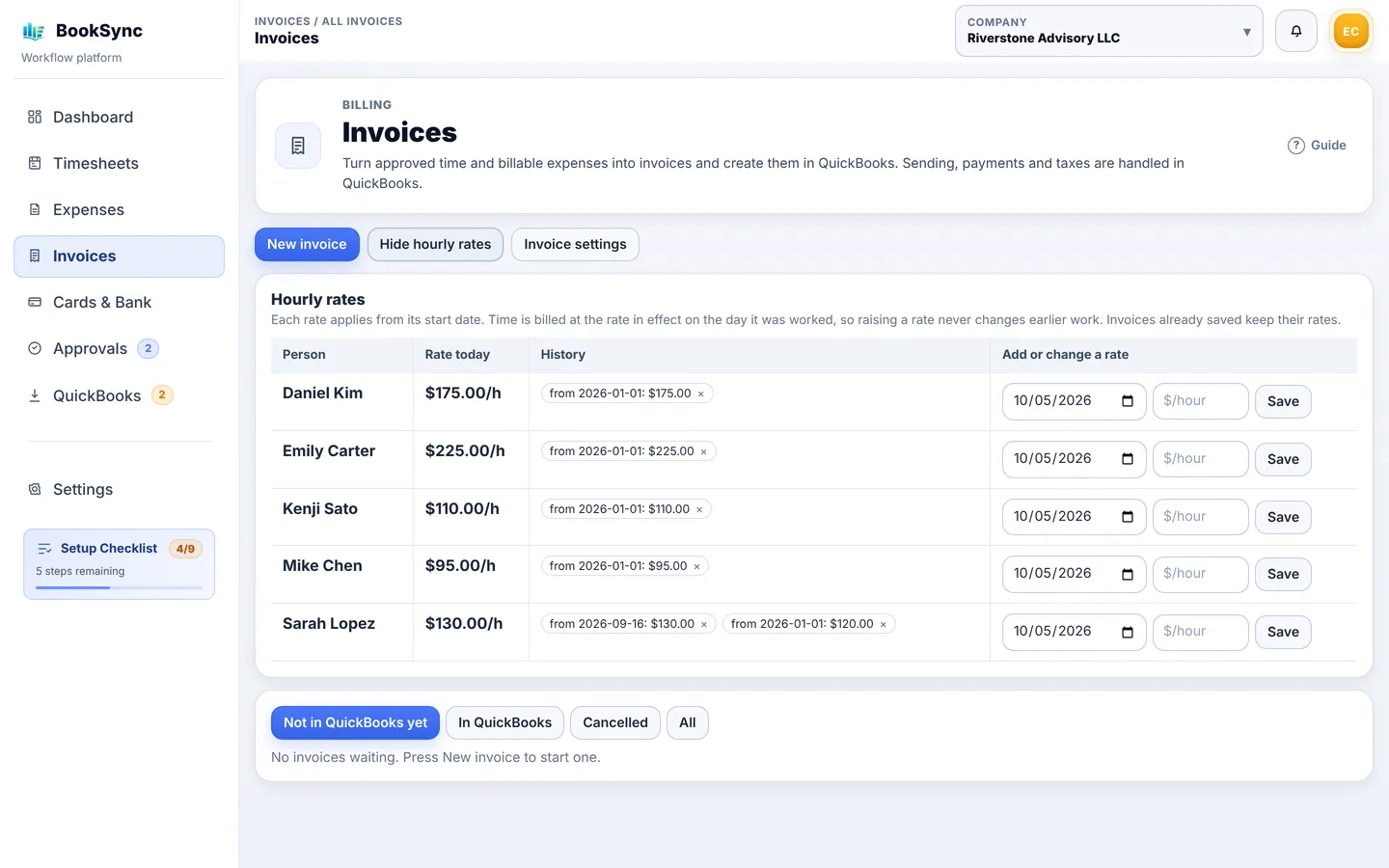
| Hourly rates | Invoices → Hourly rates | Enter an hourly rate for each person, with a start date. The rate in effect on the work date is used |
| Project billing | Settings → Clients & Projects → edit a project | Choose Billed by the hour or Fixed fee |
To raise a rate, add the new rate with its start date. Work before that date is still billed at the old rate.
An invoice only includes:
- Time that is approved, marked Billable, on an hourly project and not billed yet
- Expenses that are approved, billable, linked to that client and not a refund
Time on fixed-fee projects never appears on invoices. Bill fixed fees by adding a line under Other lines.
Create an invoice
- Open Invoices in the left menu and click New invoice
- Choose the Client (it can't be changed after saving)
- Optionally narrow it to one Project (optional). Leave it empty for all of the client's projects
- Set the period with Period from and Period to, and the Invoice date (they start as last month and today)
- Choose how time appears under Time on the invoice
- One line: everything on one line, with the breakdown in the description
- One line per person and project
- One line per time entry
- Add a note for the client in Message to the client if you like (it's printed on the invoice)
Once the client and period are set, Time and Billable expenses appear below.
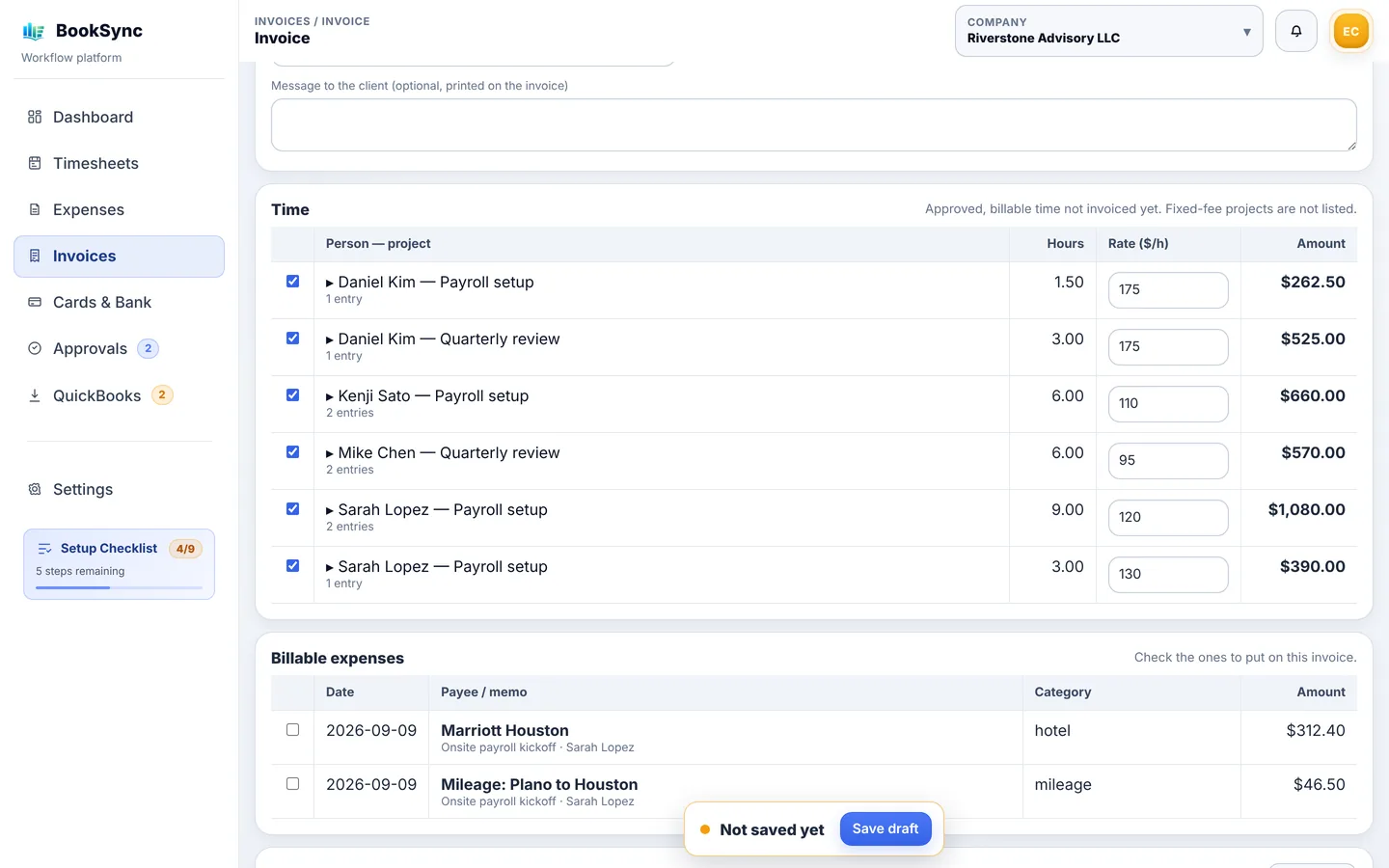
- Time: all time starts ticked. Untick anything you're not billing now; it will show up again on the next invoice
- Rate: Rate ($/h) can be changed for this invoice only. If someone's rate changed during the period, they get one line per rate
- Breakdown: click ▶ on a line to see each time entry
- Never bill: for time you'll never bill, click Never bill in the breakdown (the reason is optional). To bill it after all, open Never billed below the Time list and click Bill again
- Billable expenses: expenses start unticked. Tick the ones to bill
Below that, add lines or a discount if needed.
- Other lines: click Add a line to add fixed fees, materials and so on by hand (item, description, quantity, price)
- Discount: Amount ($) or Percent (%). Discounts must be turned on in QuickBooks (Account and settings → Sales)
Check it and create it in QuickBooks
On the invoice at the bottom shows exactly what the invoice will contain. It updates as you make changes.
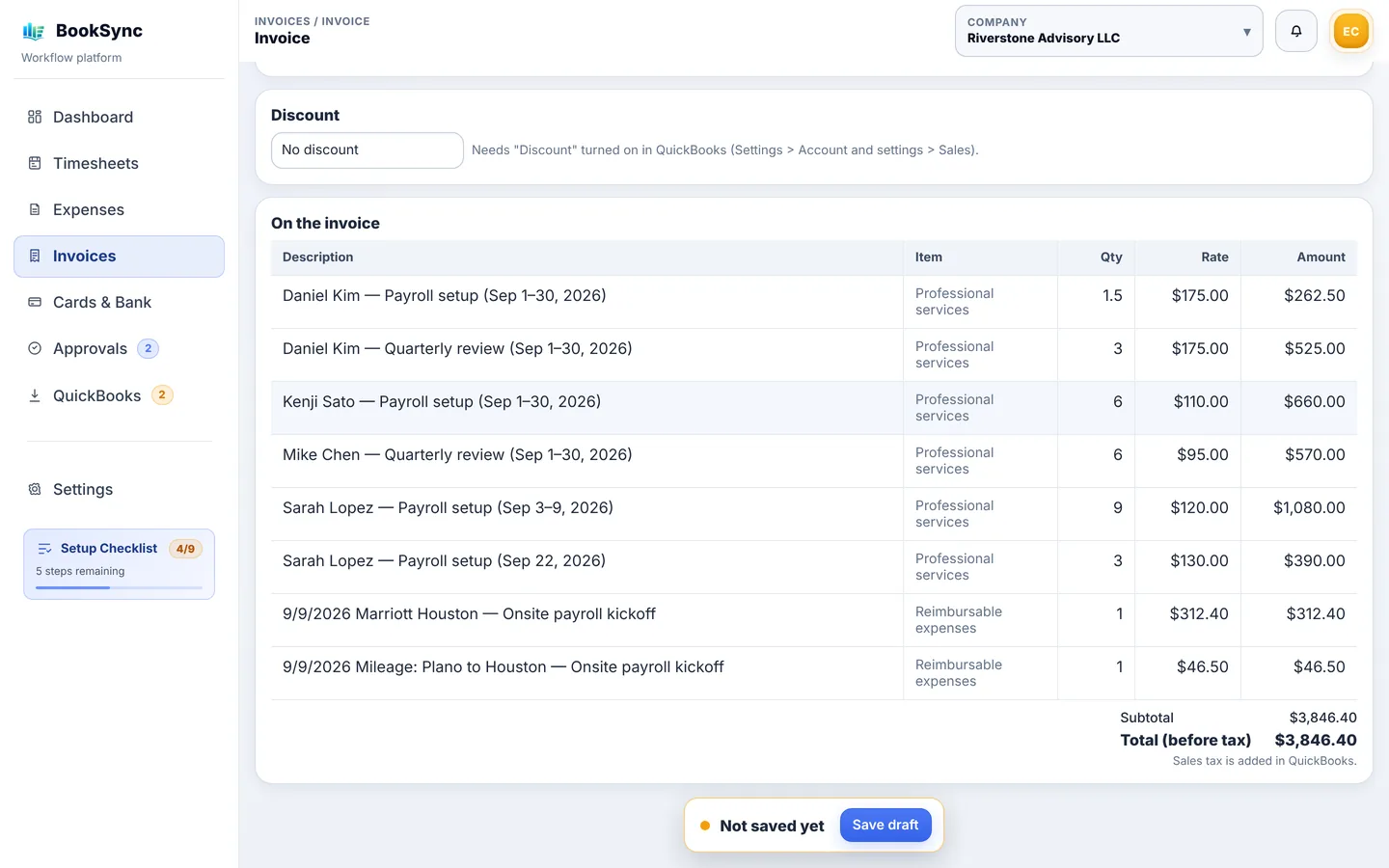
Total (before tax) excludes sales tax, which QuickBooks adds. Any problems are listed under the total.
- Click Save draft ("Invoice #N saved as a draft." appears)
- Click Create in QuickBooks at the top
- Check the amount in "Create invoice #N for $X in QuickBooks?" and click OK
- When "Created in QuickBooks (no. X)" appears, you're done. The invoice is now In QuickBooks
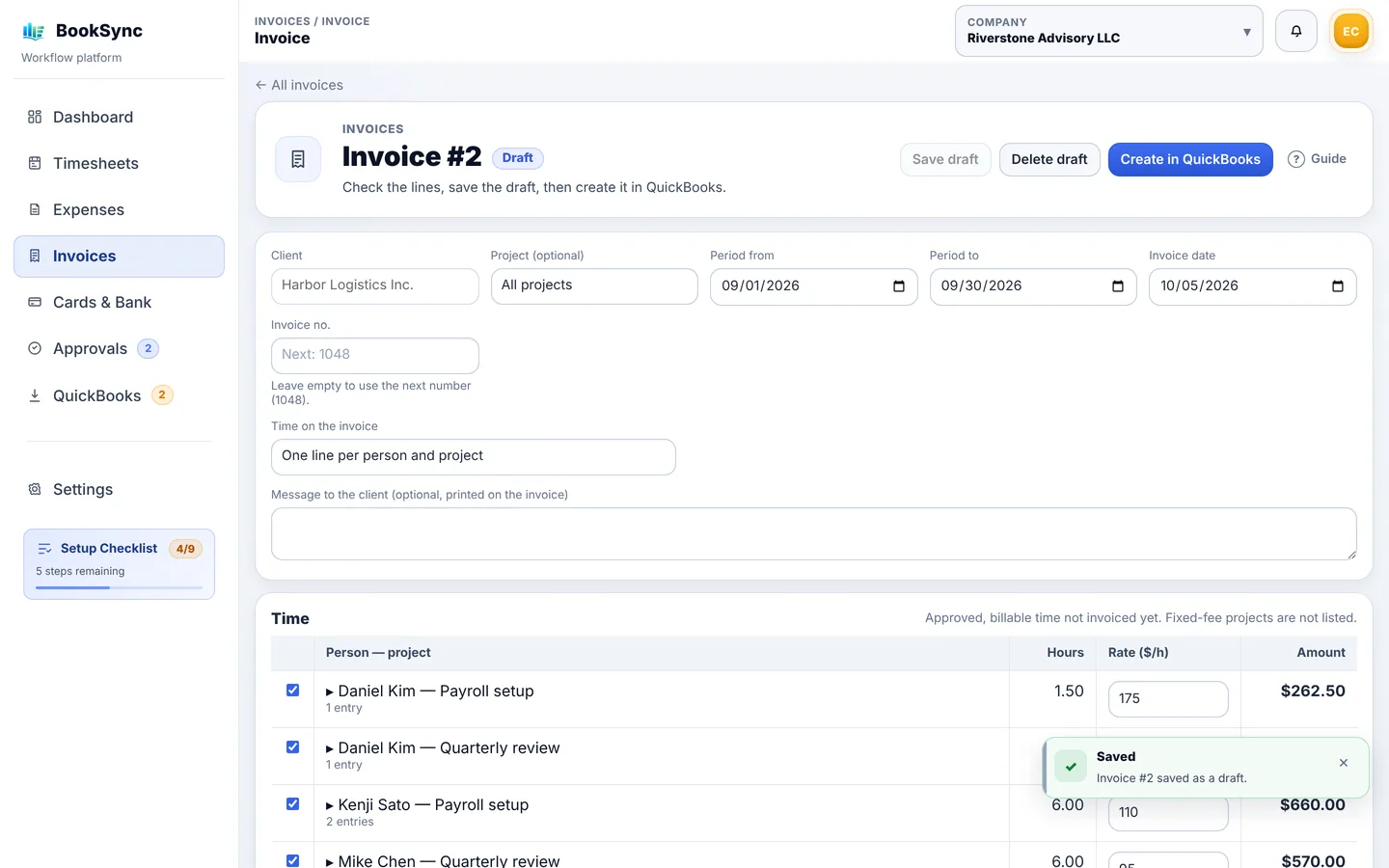
If Create in QuickBooks is disabled, there are unsaved changes or a problem to fix. Hover over the button to see why.
Invoice no. only appears if QuickBooks is set to let you enter invoice numbers. Leave it empty to use the next number.
To discard a draft, click Delete draft. Its time and expenses go back to "not invoiced".
BookSync doesn't email the client. Click Open in QuickBooks and send the invoice from there.
After it's created
The Invoices list shows each invoice's status. Switch between Not in QuickBooks yet, In QuickBooks, Cancelled and All at the top.
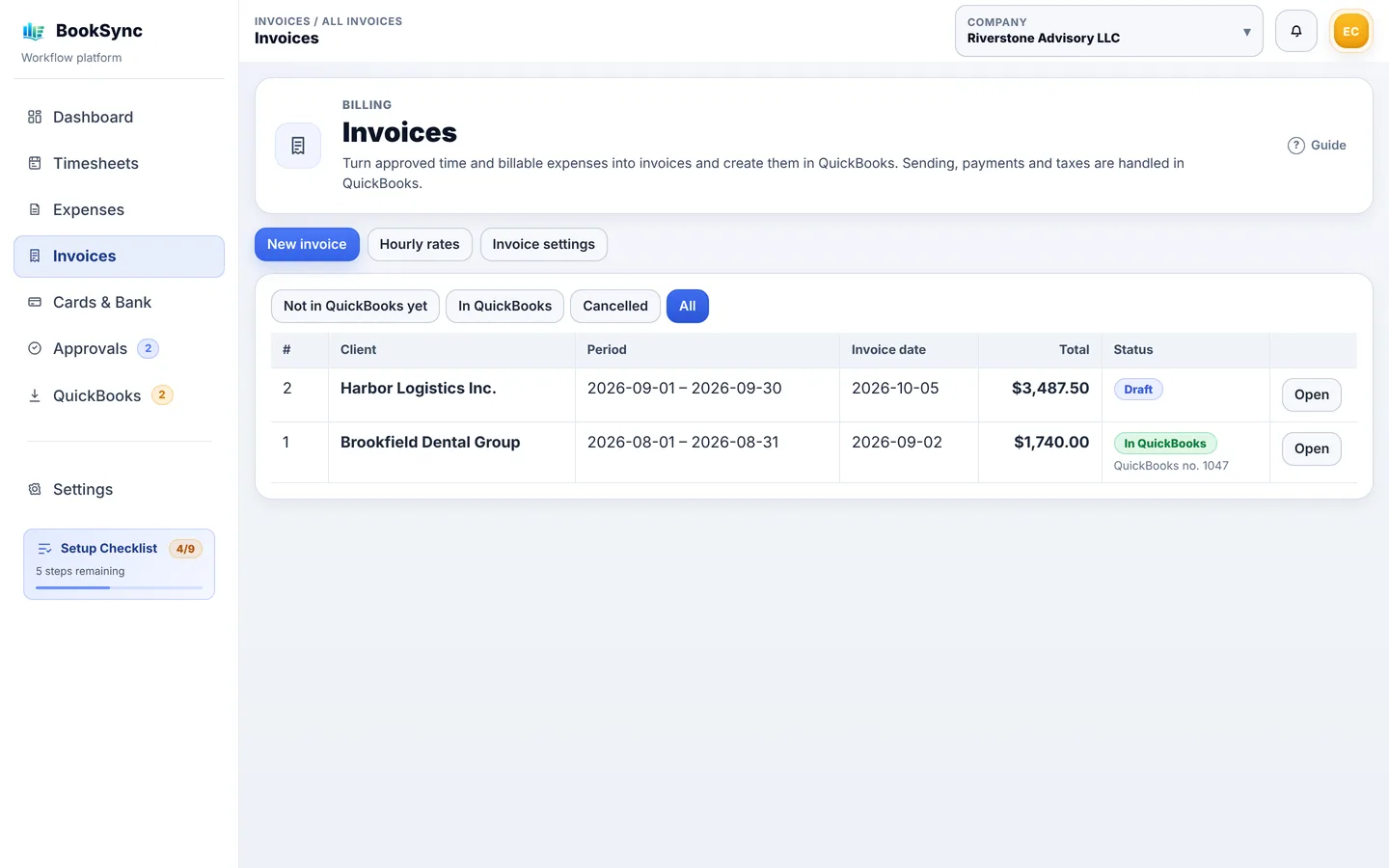
| Status | Meaning | What you can do |
|---|---|---|
| Draft | Draft | Edit, delete or create in QuickBooks |
| Creating… | Being created in QuickBooks | Wait |
| Failed | Couldn't be created | Fix the reason and try again |
| Check QuickBooks | Unknown whether it was created | Click Check QuickBooks |
| In QuickBooks | Created | Open it in QuickBooks, or report it cancelled |
| Cancelled | Cancelled | View only |
Drafts untouched for 14 days or more are marked Old draft, so they don't get forgotten.
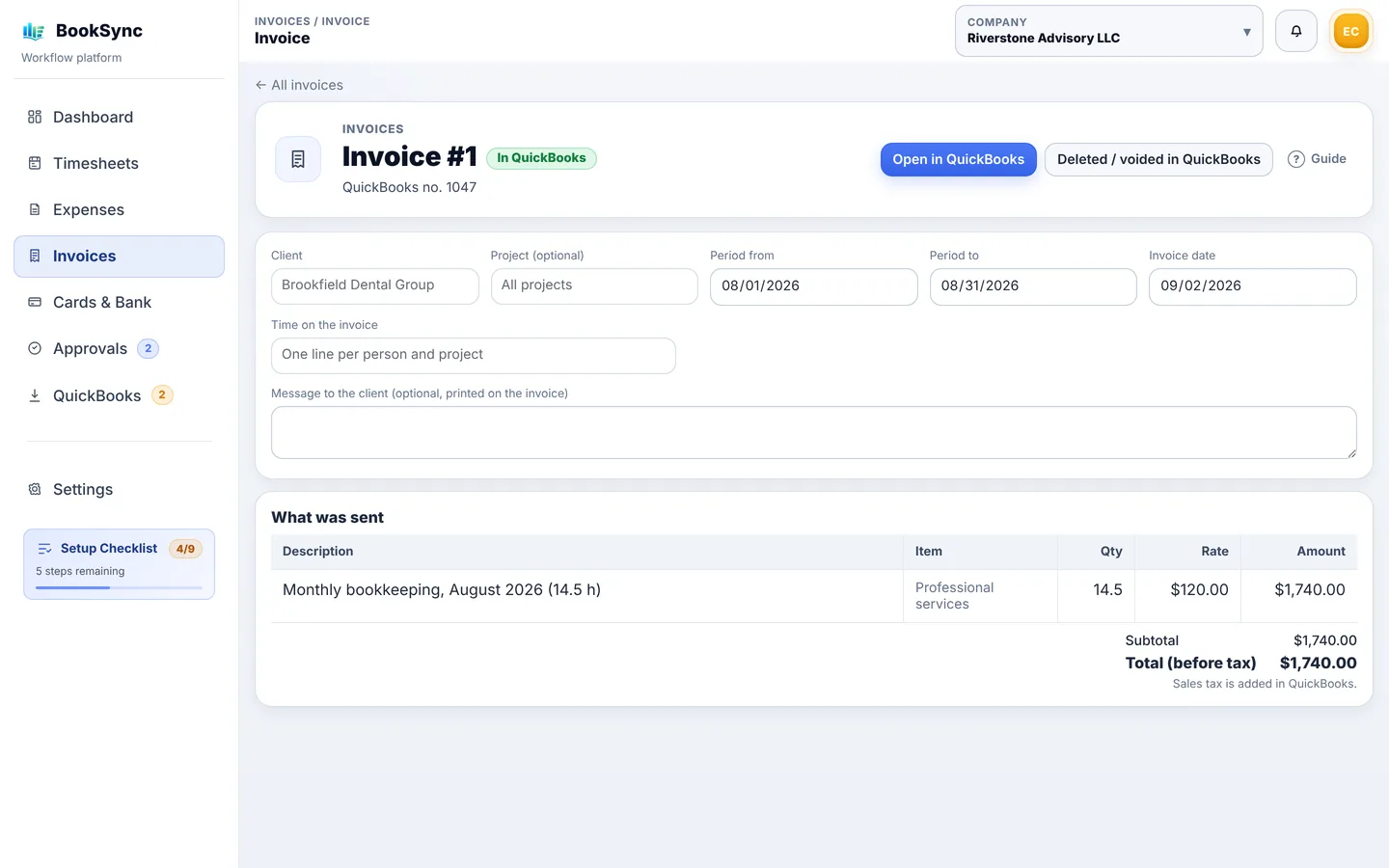
Invoices in QuickBooks can't be edited in BookSync. What was sent keeps a copy of what was created.
Sending and payments
Sending the invoice, recording payments and sales tax all happen in QuickBooks. BookSync doesn't know whether an invoice has been paid.
If you made a mistake
- Delete or void the invoice in QuickBooks
- Open it in BookSync and click Deleted / voided in QuickBooks
- BookSync checks QuickBooks, marks the invoice Cancelled and returns its time and expenses to "not invoiced"
- Fix what's needed and create a new invoice
Time and expenses on an invoice
Once on a draft, the date, hours, project, client and amount can't be changed; the description still can. To change them, take the item off the invoice first (untick it and save the draft, or follow "If you made a mistake" for created invoices).
Time isn't showing up on the invoice
- Is it approved?
- Is Billable ticked on the time entry?
- Is the project set to Billed by the hour?
- Is the work date inside the period?
- Is it already on another invoice, including a draft?