Sending expenses to QuickBooks
Only approved expenses can be sent to QuickBooks Online. Each expense becomes one expense transaction (Purchase) in QuickBooks.
There are four steps:
- Connect QuickBooks and map your categories and accounts (once)
- On Send to QuickBooks, pick the expenses and create a batch
- Open the batch and click Send to QuickBooks
- If something is blocked, find out why under Problems and fix it
Here's what QuickBooks receives:
| In BookSync | In QuickBooks |
|---|---|
| One expense | One expense (Purchase) |
| Paid with account | The payment account. Credit card accounts are recorded as card payments, others as cash |
| Refund (negative amount) | A credit |
| Merchant | Created as a vendor if it doesn't exist yet |
| Number | Ref no. BS-xxxx |
| Receipt | Attached when possible |
Before you send: connect and map
You only need to do this once. Everything is under Settings (admins only).
| Setting | Where | What to do |
|---|---|---|
| Connect QuickBooks | Settings → QuickBooks Connection | Click Connect to QuickBooks, sign in to QuickBooks and allow access |
| Payment account | Settings → QuickBooks Connection | Choose which account reimbursed expenses (My expense / reimbursements) are paid from |
| Category mapping | Settings → Expense Mapping | Link BookSync categories (Hotel, Meals and so on) to QuickBooks accounts |
| Client and project mapping | Settings → Customer Mapping / Project Mapping | Link BookSync clients and projects to QuickBooks customers |
Card expenses use the Paid with account on the expense. Without one, the expense is Blocked and can't be sent.
Connecting step by step is in section 4 of Getting started.
Pick expenses and create a batch
Click QuickBooks in the left menu. The Send to QuickBooks tab lists approved expenses that haven't been sent yet.
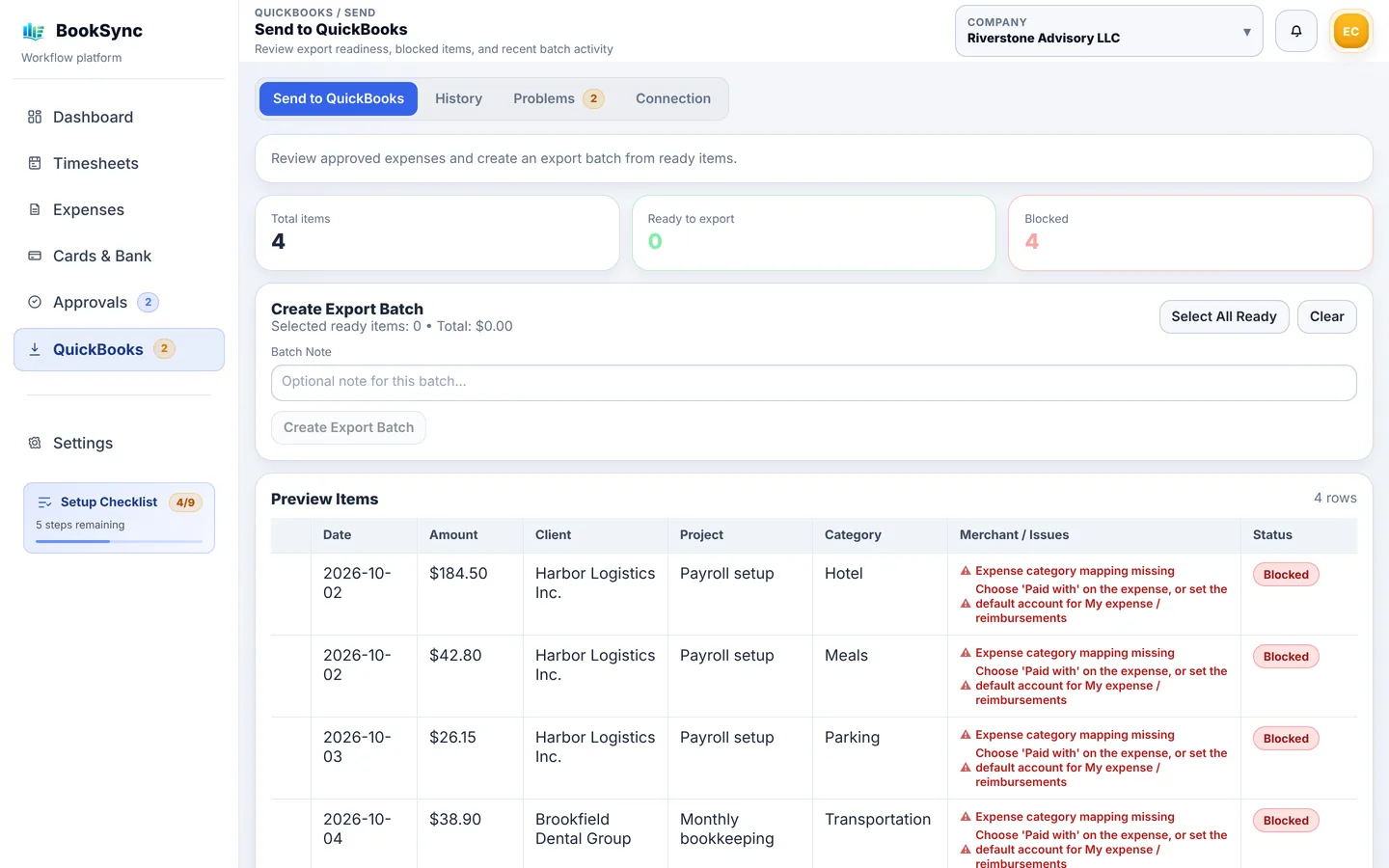
- Check the three numbers at the top: Total items, Ready to export and Blocked
- Tick the expenses whose Status is Ready, or click Select All Ready
- Add a Batch Note if you like (for example, October first half)
- Click Create Export Batch
Blocked expenses can't be selected. The reason appears in red in the Merchant / Issues column; see "When something is blocked" below. Notes that aren't red are warnings only, and those expenses can still be sent.
Send the batch
Creating a batch doesn't send anything yet. Nothing reaches QuickBooks until you send it from the batch page.
- When Batch created appears, click Open Batch Detail (later, open it from the History tab)
- Check the expenses and the total
- Click Send to QuickBooks
- Confirm the count in "This will create up to N expense(s)…" and click OK
- When it finishes, each expense shows whether it was sent or failed
The History tab lists all batches and their results. If some expenses failed, fix the reason, then click Retry sending to QuickBooks on the same batch. Expenses already sent are skipped, so nothing is created twice.
If you created a batch by mistake, open it and click Delete batch. Its expenses go back to Send to QuickBooks. You can only delete a batch that sent nothing to QuickBooks (not sent yet, or every expense failed).
When something is blocked
The Problems tab lists every expense that can't be sent and why. Click Fix next to a reason to go to the page that fixes it.
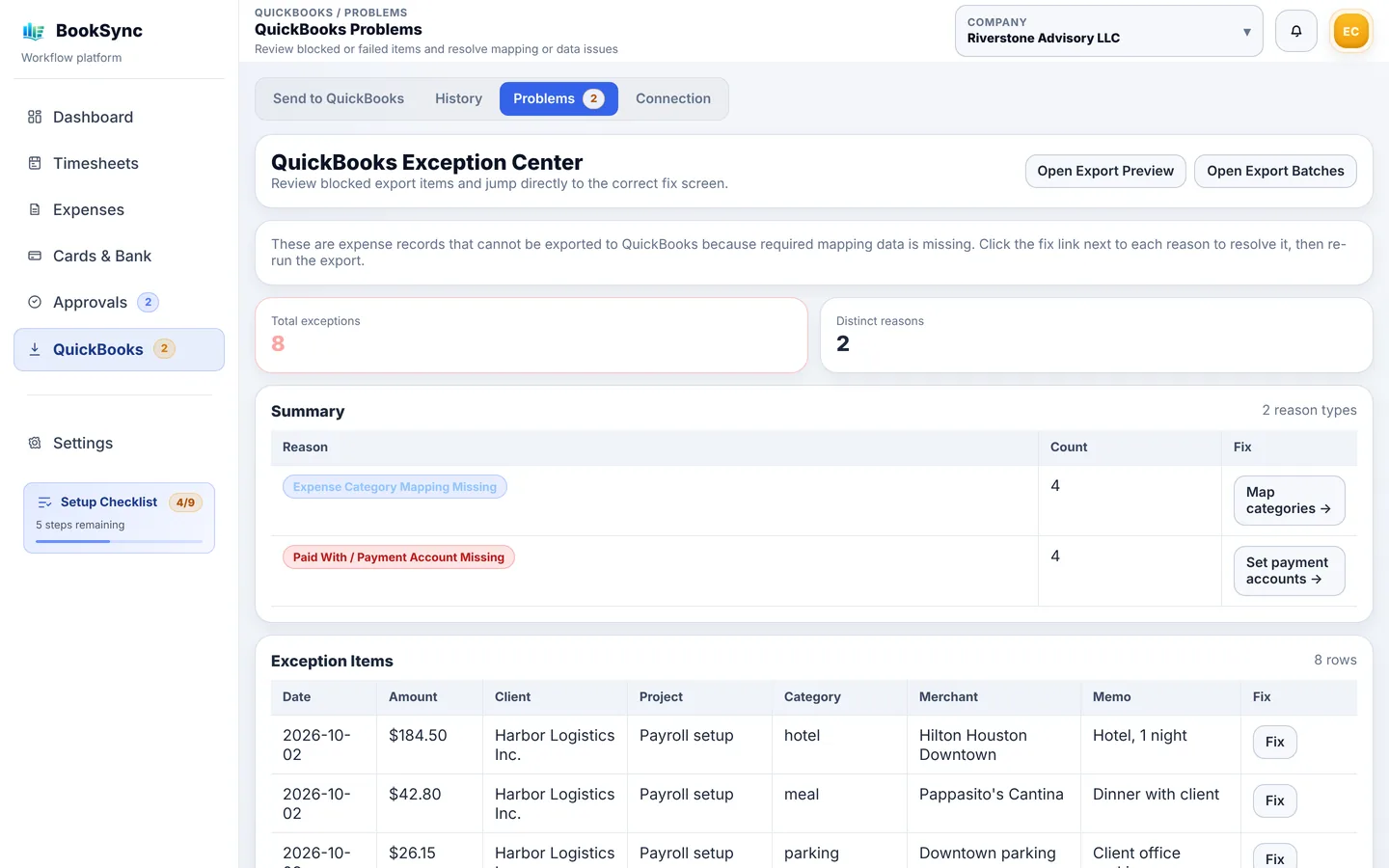
| Reason | How to fix it |
|---|---|
| Expense Category Mapping Missing | Map categories → and link the category to a QuickBooks account |
| Paid With / Payment Account Missing | Set payment accounts → to set the account for reimbursed expenses. For card expenses, choose Paid with |
| Client QBO Mapping Missing | Map clients → and link the client to a QuickBooks customer |
| Project QBO Mapping Missing | Map projects → and link the project |
After fixing it, go back to Send to QuickBooks; the expense now shows Ready.
If every expense fails, the QuickBooks connection may have dropped. Click Check connection now on the Connection tab and reconnect if needed.
Fixing something after it's sent
Sent expenses can no longer be edited in BookSync, and sending can't be undone.
- Fix a wrong amount or account directly on the expense in QuickBooks
- Search QuickBooks for the ref no. BS-xxxx to find it
- Delete it in QuickBooks if it shouldn't have been sent
The best way to avoid mistakes is to check the amounts and categories in the list before clicking Create Export Batch.