Approving time and expenses
This guide is for people who approve their team's time and expenses (admin or owner role). It covers approving, sending items back, and correcting items after approval.
Who approves whom
| Submitted by | Approved by |
|---|---|
| member | admin or owner |
| admin | owner only |
| owner | Time and expenses are approved automatically |
You can't approve your own submissions.
1. See what's waiting
Open Approvals in the left menu to see what's waiting for your approval. The number next to it is how many items are waiting for you.
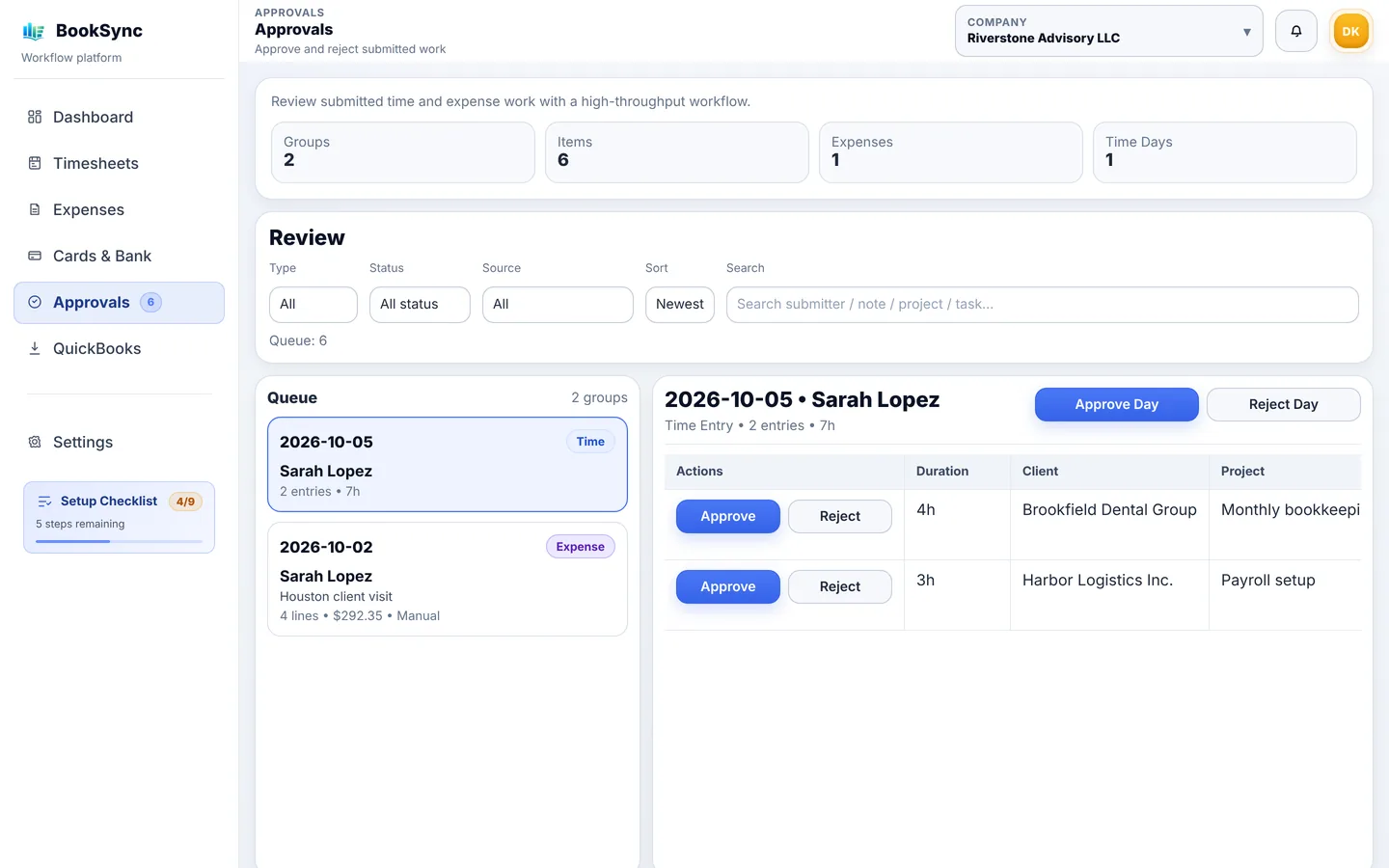
- The Queue on the left lists time by person and day, and expenses by report. The Time or Expense tag shows which is which.
- Click an item to see its lines on the right.
- Use Review at the top to filter by type (Timesheet or Expense), change the sort order or search by name or project.
The list only shows what you can approve. Your own submissions and those of people in the same role (another admin, for example) don't appear.
2. Approve or reject time
Approve
- In Approvals, pick a day tagged Time.
- Check the entries and click Approve Day to approve the whole day. To approve one entry, click Approve on that line.
- You move on to the next item automatically.
Reject
- Click Reject Day (or Reject on one line).
- Enter a reason. A reason is required. You can pick a common one from Select a template…, such as missing description, wrong client or project, or too many hours.
- Click Confirm.
The person sees the reason on their timesheet. When they fix it and resubmit, it comes back to your queue.
See everyone's status
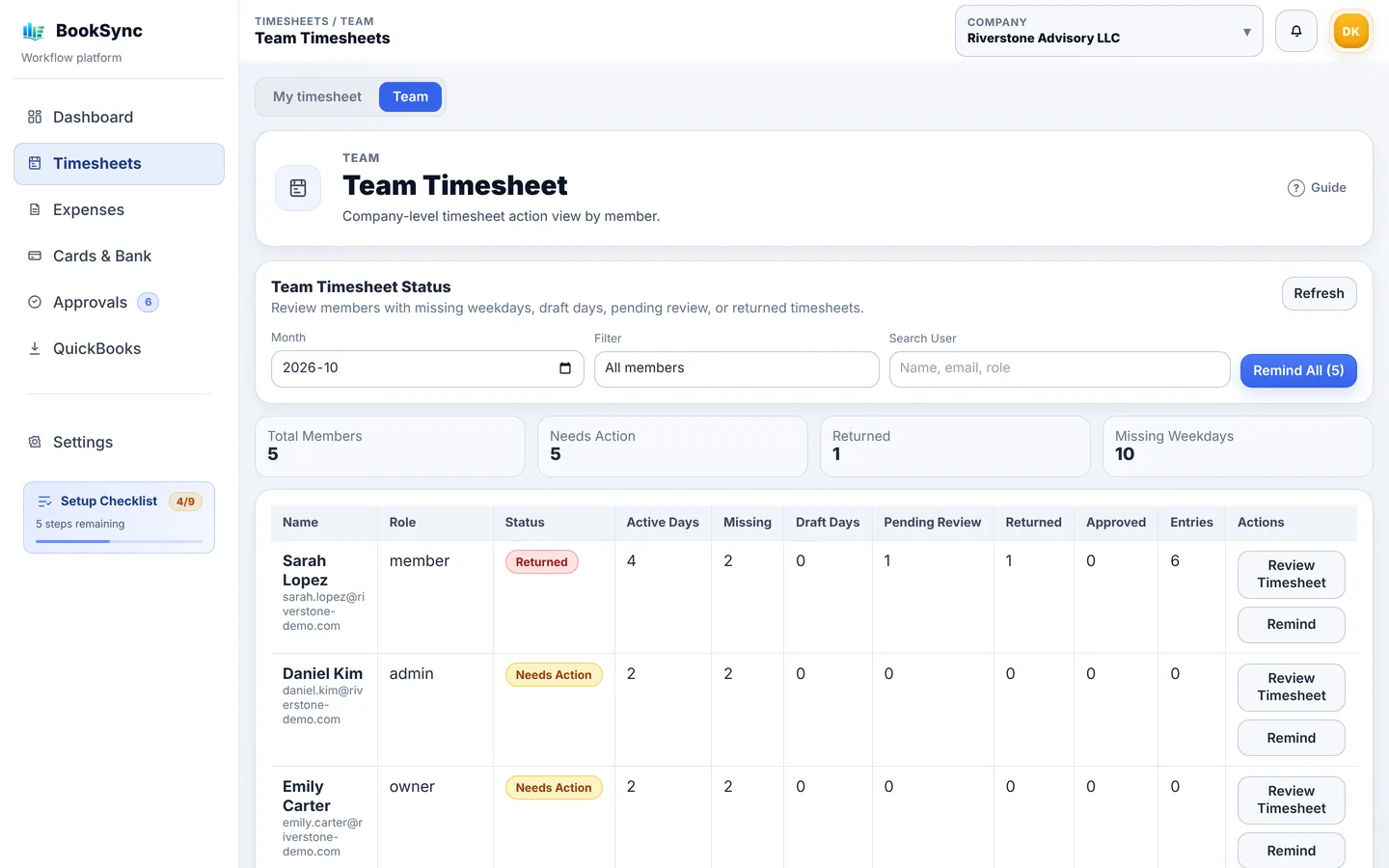
Timesheets → Team shows this month's status for each person: weekdays with no time, drafts, waiting for approval and rejected. Click Review Timesheet to open and approve their time, or Remind to nudge them.
3. Approve or reject expenses
Expenses are usually approved a whole report at a time. You can also send back just some of them.
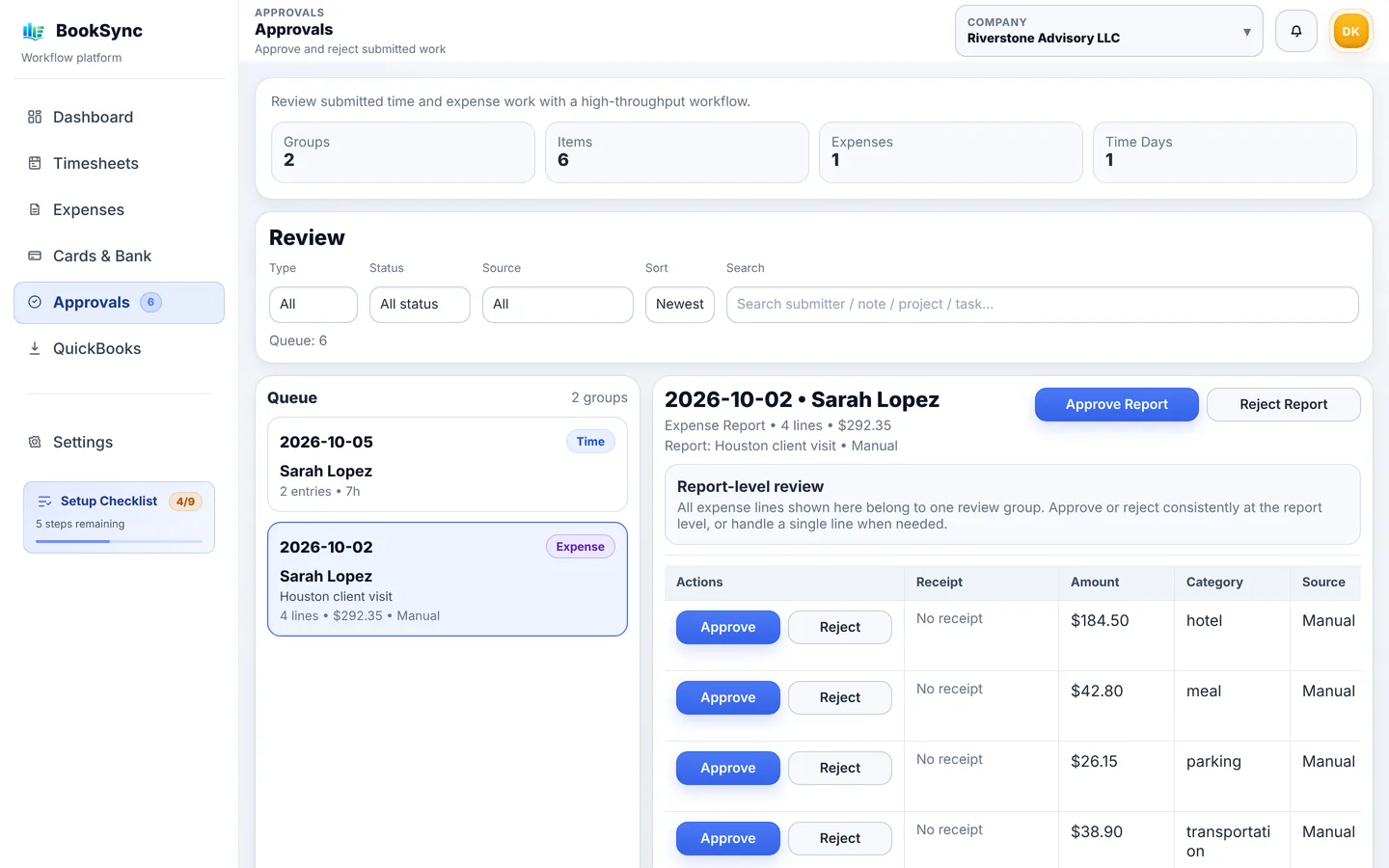
- In Approvals, pick a report tagged Expense.
- Check the amount, category, client and memo on each line. Click View in the Receipt column to open the receipt in a new tab ("No receipt" means none was attached).
- If everything looks right, click Approve Report.
Reject
- The whole report: Reject Report
- Some expenses only: Reject on that line
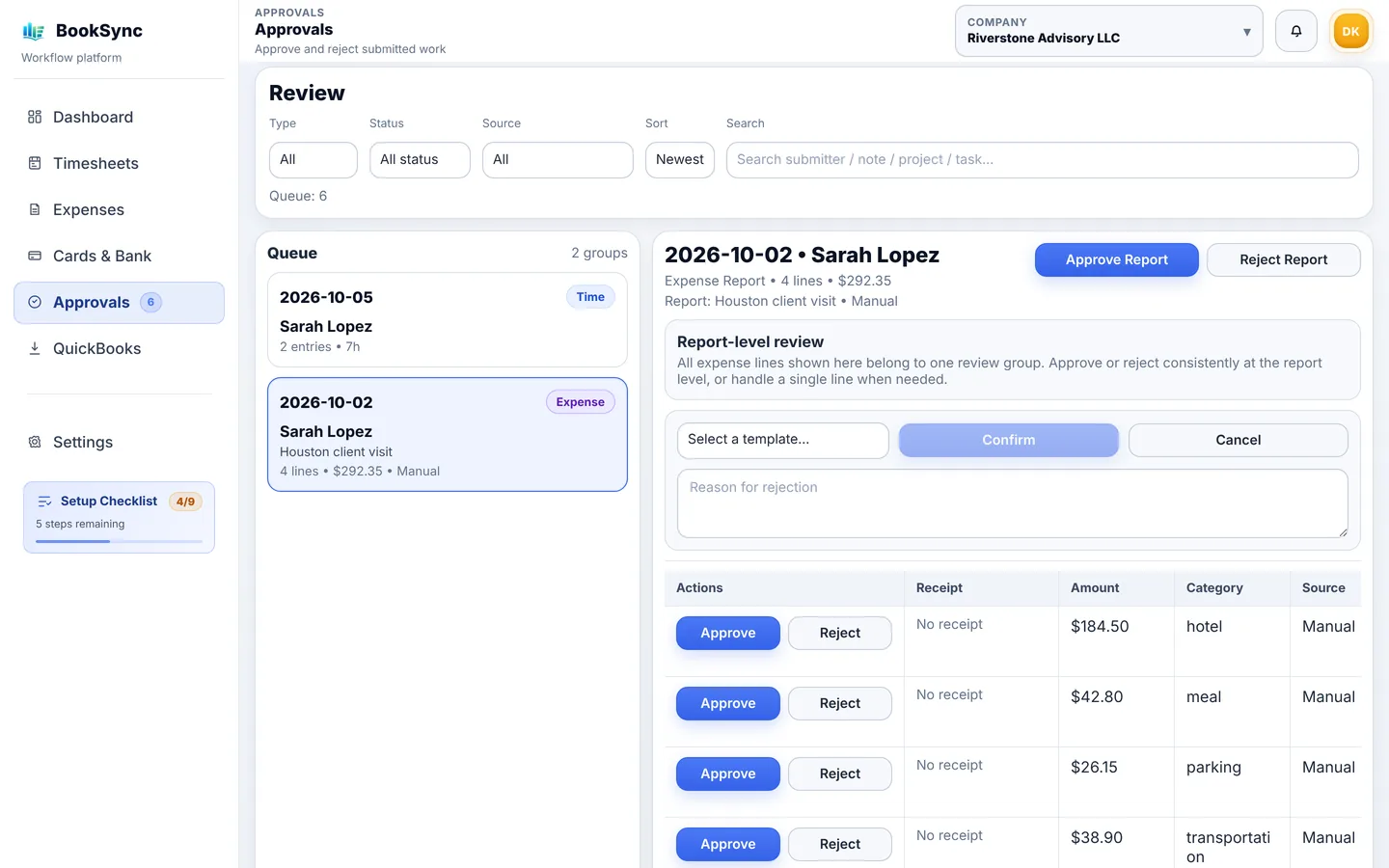
A reason is required. Select a template… offers missing receipt, wrong client or project, unclear business purpose, check the amount, and wrong category. Click Confirm.
You can also review expenses under Expenses → Team. Open a report with Review Report to approve or reject it the same way.
4. Correct something after approval
Approved items no longer appear in Approvals. Open the person's time or report from Team under Timesheets or Expenses. Both options below only work if your company allows them (see section 6 of Getting started).
| To | Do this | Note |
|---|---|---|
| Undo the approval and have them fix it | Reject with a reason | When "Allow reject after approval" is on |
| Fix it yourself and keep it approved | Correct Approved, then save with a reason (Save Correction for time, Save Approved Override for expenses) | When "Allow higher-level override edit after approval" is on. The reason is kept in the history |
Only someone in a higher role than the submitter can correct: admins and owners for members, owners for admins.
Expenses already sent to QuickBooks can't be changed or rejected in BookSync. Fix them in QuickBooks.
5. Approve on your phone or in Copilot
Phone
On a phone, Approve appears at the bottom. Tap a day or a report, check it and tap Approve or Reject. To reject, enter a reason and tap Confirm Reject. Receipts open with View under Receipts.
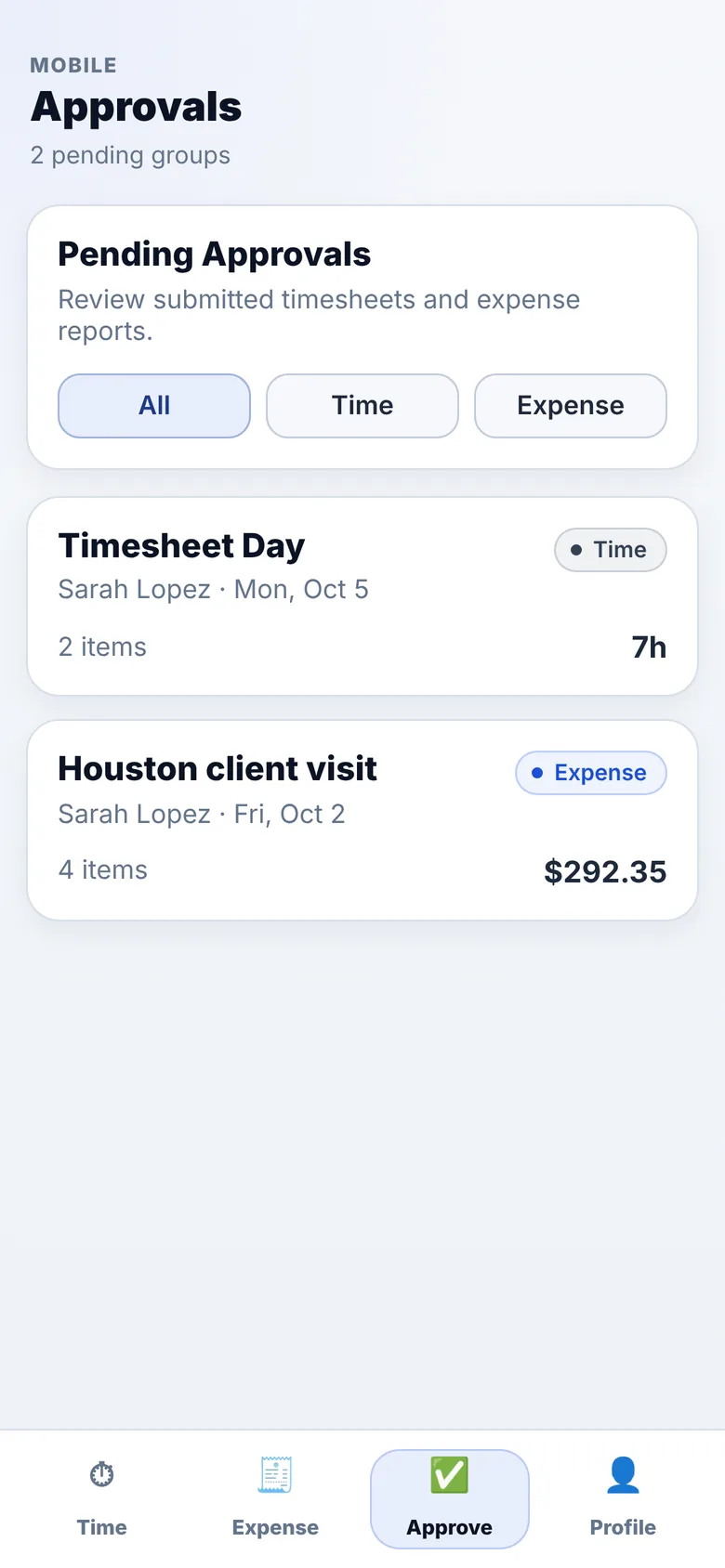
On a phone, an expense report is approved or rejected as a whole. To reject only some expenses, use a computer.
Copilot in Teams
If BookSync is installed in Teams, ask Copilot "What is waiting for my approval?" and approve or send back right there. Copilot asks for a reason when you send something back. You can also ask to see an expense report's lines and receipts first; receipt links open in BookSync after you sign in. See Using BookSync in Teams and Copilot.